





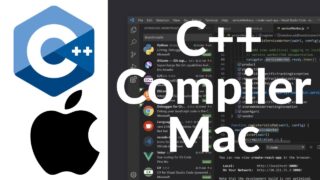


How to Setup C++ Compiler on Mac | C++ Compiler Installation for Mac Users
How to Setup C++ Compiler on Mac | C++ Compiler Installation for Mac Users
Setting up a C++ compiler on macOS is an essential first step for anyone learning or working with C++ programming. In this tutorial, you will learn how to set up a C++ compiler on Mac step by step. This guide is suitable for beginners, students, and developers using macOS on Apple Silicon (M1, M2, M3, M4, M5) as well as Intel-based systems, including MacBook Pro, MacBook Air, and iMac.
We start by explaining what a C++ compiler is and why it is required to compile and run C++ programs on macOS. You will understand how source code is converted into executable programs and why choosing the right compiler is important for performance and compatibility.
In this video, we focus on installing the most commonly used C++ compiler on macOS, which is provided through Apple’s Command Line Tools. You will learn how to install Xcode Command Line Tools using the terminal, which includes the Clang compiler. Clang is fully compatible with modern C++ standards and is the default compiler on macOS.
Next, we demonstrate how to verify the C++ compiler installation and check the compiler version. You will learn how to compile and run your first C++ program directly from the terminal, helping you understand the complete workflow from writing code to executing it.
We also explain how C++ compilation works on macOS, including basic compiler commands, file extensions, and output binaries. This section is designed to help beginners feel comfortable using the command line for C++ development.
Common issues faced by Mac users are also covered in detail. You will learn how to fix problems such as the compiler not being found, permission errors, or issues related to Apple Silicon compatibility. Practical troubleshooting tips are shared so you can quickly resolve errors and continue coding without frustration.
Additionally, we discuss optional tools and editors you can use alongside the C++ compiler, such as Visual Studio Code or other IDEs, to improve productivity and make C++ development easier on macOS.
By the end of this tutorial, you will have a fully working C++ compiler installed on your Mac and be able to compile and run C++ programs with confidence. This tutorial is perfect for beginners starting with C++, computer science students, and developers transitioning to macOS.
If you found this tutorial helpful, don’t forget to like the video, subscribe to the channel, and share it with others who want to set up C++ development on macOS.
#CPlusPlus #Cplusplus #CPP #MacOS #CCompiler #InstallCpp #AppleSilicon #M1 #M2 #M3 #M4 #M5 #MacBookPro #MacBookAir #iMac #ProgrammingTutorial #CppForBeginners #DeveloperSetup