



How to Install macOS Big Sur on an iMac from a Bootable USB Drive
How to create a Bootable USB for Mac OS X Big Sur with Terminal
🍎 How to Install macOS Big Sur on an iMac from a Bootable USB Drive
In this video, I’ll show you how to install macOS Big Sur on an iMac using a bootable USB drive. We’ll go through the process step by step, from preparing the USB installer to booting the iMac from the USB drive and starting the macOS Big Sur installation.
This method is useful when you want to perform a clean installation or reinstall macOS Big Sur on a compatible iMac. Apple officially supports creating a bootable macOS installer using Terminal and the createinstallmedia command.
🛠️ What You’ll Learn:
🍎 How to install macOS Big Sur on an iMac
💾 How to create a bootable Big Sur USB drive
🔧 How to prepare the USB installer
💻 How to boot an Intel iMac from USB
⌨️ How to use the Option (Alt) key at startup
💿 How to start the macOS Big Sur installation
🔄 How to reinstall macOS on a compatible iMac
Apple’s official Big Sur bootable-installer command is:
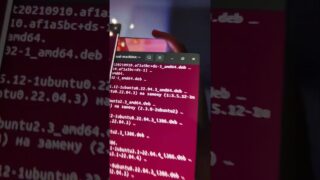
sudo /Applications/Install macOS Big Sur.app/Contents/Resources/createinstallmedia –volume /Volumes/MyVolume
If you’re installing from a bootable USB on an Intel-based Mac, connect the USB drive, start the Mac, and immediately hold Option (Alt) to select the installer.
👍 Like, comment, and subscribe for more macOS installation guides, iMac tutorials, Mac troubleshooting, and classic Apple hardware videos!